


Sitecore Content Hub One is a brand new product that is part of Sitecore’s Content Cloud pillar. For anyone that wants to find out more I have a blog explaining the different parts of Content Cloud here

In a previous post I put down my initial thoughts on Content Hub One. Now though as more information has been released including my access to a test instance I wanted to give some more information and walk you through a scenario.
I finally got access this week and Content Hub One has so far exceeded my expectations. It has a clean interface and just works. The best part for me it’s brand new and no baggage.
Cloud Portal
Let’s start with how you access Content Hub One. To access Content Hub One instances you do this directly in the cloud portal.

Sitecore have put a lot of effort into it the portal and it’s the Saas product hub. If you have tried out XM Cloud it’s exactly the same portal. The portal can be accessed at https://portal.sitecorecloud.io/
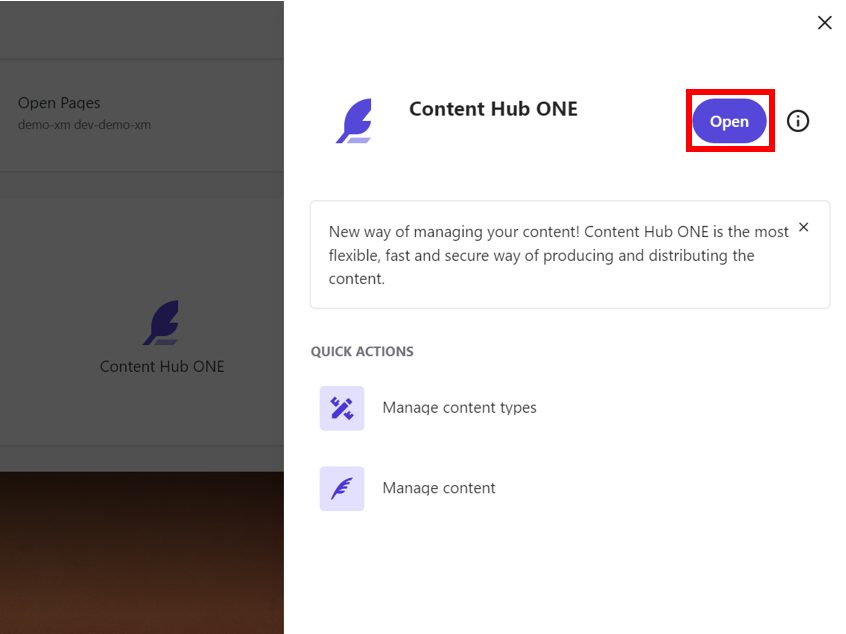
Start by clicking on the Content Hub One icon and a drawer will slide out with some additional information.
From here click on the open button to navigate to that Content Hub One instance.
Start Page
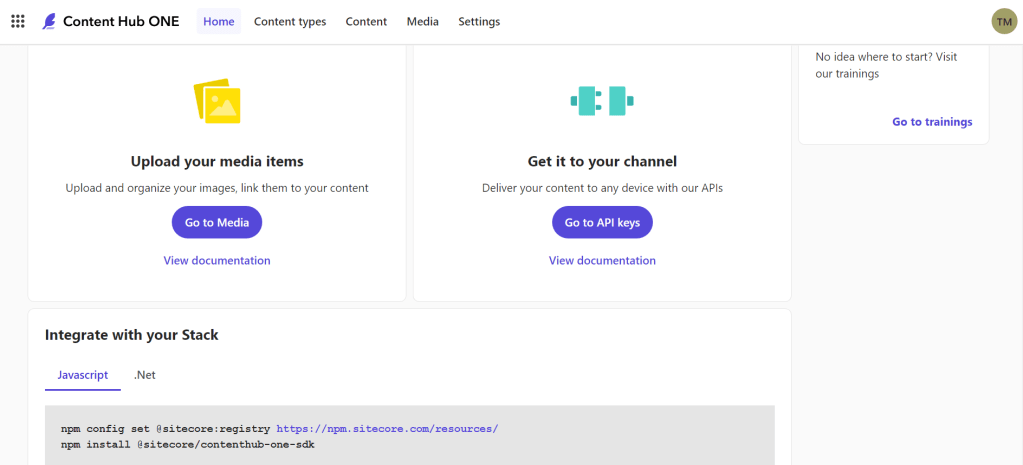
The UI is not cluttered and gives a user a simple interface. The user is prompted to start their journey at the beginning with Content Modeling and where you start defining your Content Types. However if you have defined types you an go straight in and start building your content.
What’s really nice here though are all of the documentation links and information on the multiple ways to actually get your content to your channels and technology stack’s.
Content Types

Content Modeling is the most important part to get right and Sitecore have put together some really good documentation on Modeling on the documentation site. When you are ready to get started you can click the ‘Add Type’ button on the top right.
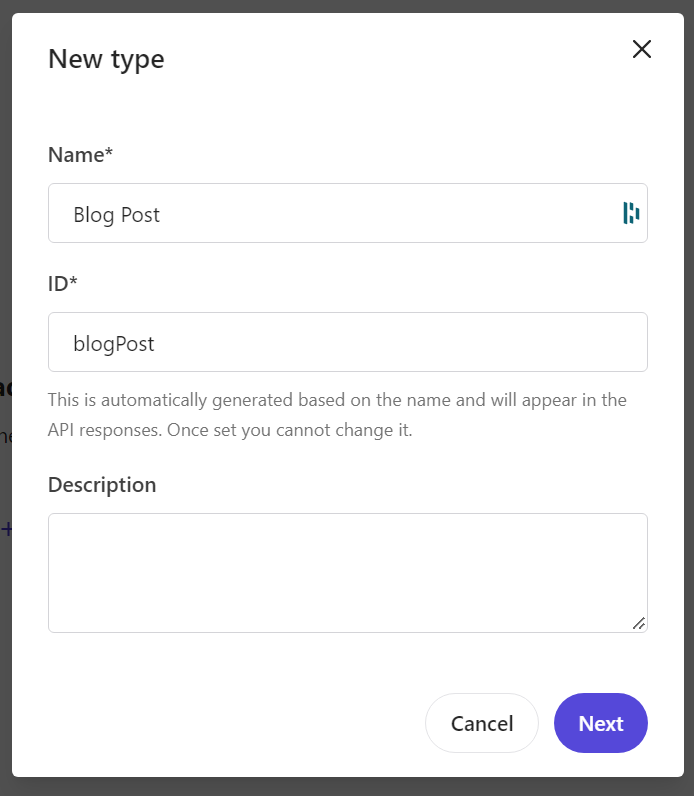
This is a really simple view and is where you can enter a name of your new Content Type.
When you click next you will be taken to the below page where you can start adding fields to the Content Type.
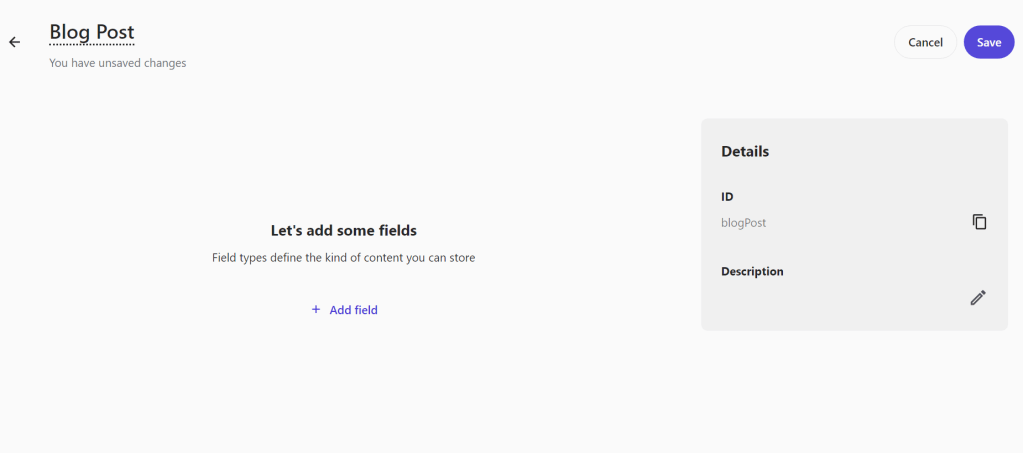
Clicking add field gives you several options to choose from and will allow you to construct complex Content Types.

Text
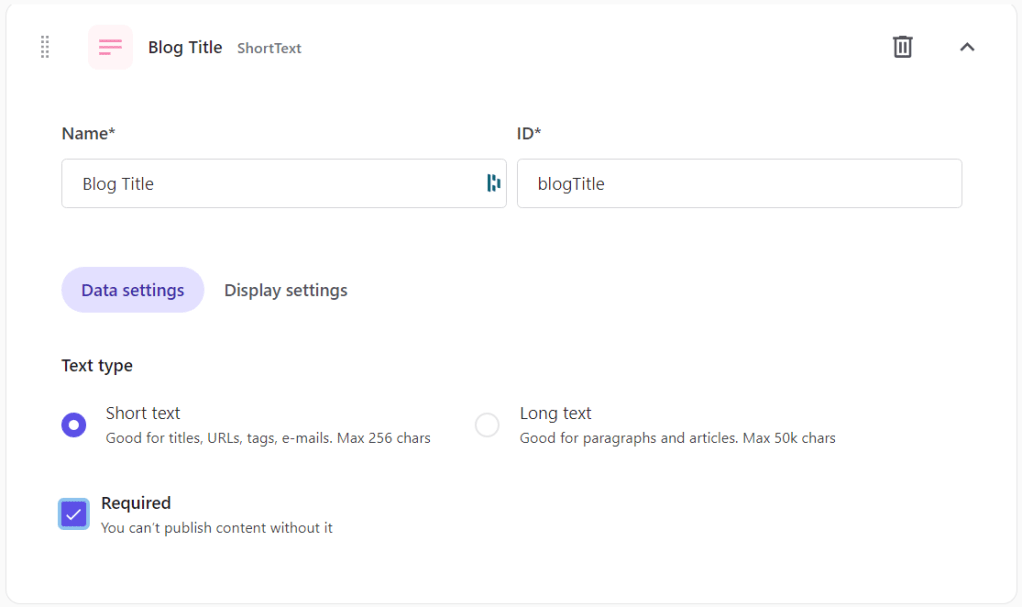
This is the most simple field type we have and gives the user a few simple options.
They can choose between short text ideal for titles and long text that is great for paragraphs of text content.

Rich Text
The next field type is the rich text editor allowing users to write large formatted blocks.
What is exciting here is that the editor is custom built for Content Hub One using the ProseMirror editor toolkit as a foundation.
This should give real flexibility and allow full control over how users use the rich text editor.
Numeric
The numeric type allows users to add in a number field that automatically filters out non numeric characters.


Boolean
The boolean type has the same configuration as the numeric type and when building Content allows users to add in a true or false option.
Date Time
The date time field is another really simple type and allows the user to set the following for date time when building the content.
- Date
- Time
- Timezone


Reference
The reference type allows users to add a reference to another content item in Content Hub One.
Media
The media type allows the user to select an image from within Content Hub One

Content
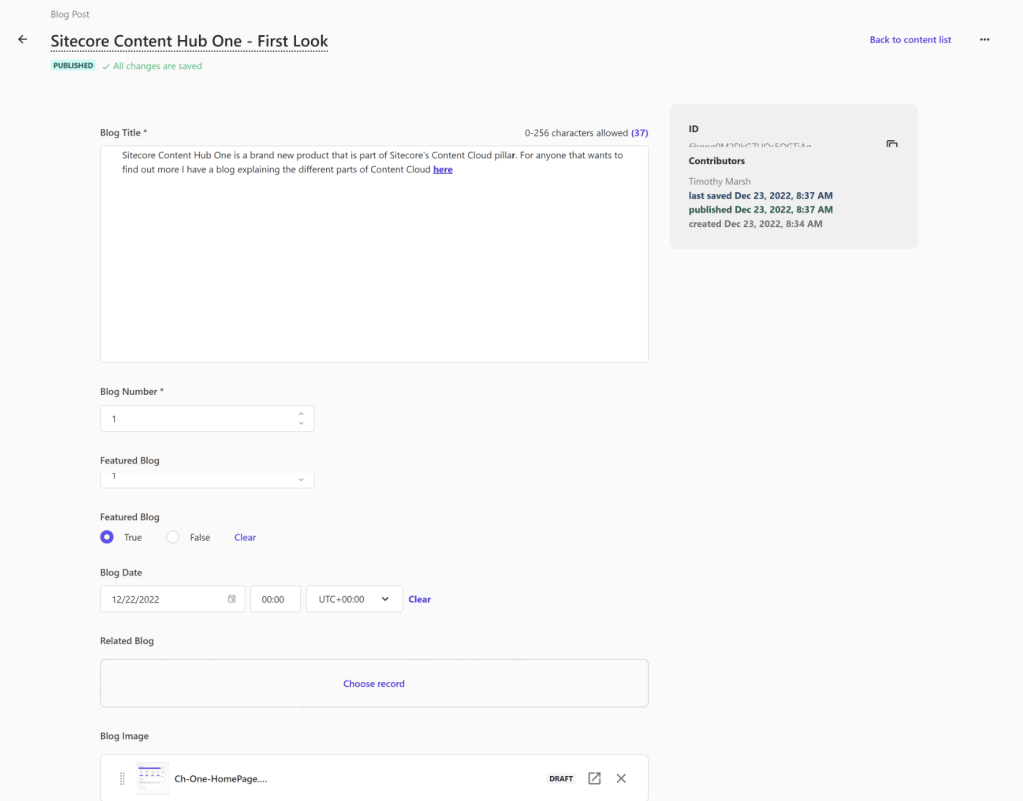
After building your first content type you can then start creating your first piece of content. You navigate to the Content section and click on the ‘Add Content’ button. A list of all the available content types appears, then choose the one you want to create.

After this a page will open with all the content fields you added to the Content Type. You can fill out all the parts and then you can save your content.
Content Hub One has such a simple interface, that it should be simple for Content Authors to build content. It’s all about the disconnection between content and layout, this is just for building content.
Media
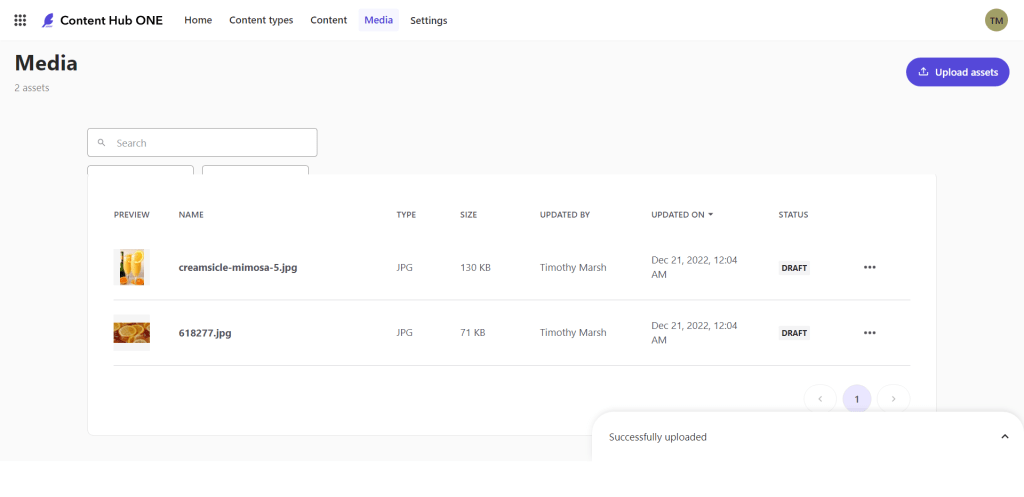
Media is extremely lightweight and will be very different for anyone used to using Content Hub DAM.
This is all about the image and a description that can be used for alt text.
That’s it, you upload images and save! These will then show in the content editor if you have used a media field type.

API Keys

API keys allow users to set the name and whether it’s delivery or preview. Documentation can be found here.
Conclusion
Content Hub One is great to use and does its job well. I am happy to have had access and able to try out modelling content types and the platform features
In a future blog post I will explore how to use the content with the different API’s.
I hope you enjoyed this blog and look out for the next one.


 Tim's Blog
Leave a reply to What happens to Sitecore Content Hub CMP now that Content Hub One is here? – Tim's Blog Cancel reply