



Setup instructions can feel like your deciphering an ancient language – especially when their are a lot of steps! Recently I was trying to install the DAM module inside Sitecore XP for Sitecore Content Hub.
What I found during my attempt was that there were some details un clear that could lead to mistakes or delays in the process. All the information is there but it took a few attempts to get it working. It was a puzzle.

Also, this guide is for the DAM only picker on the CM to keep this blog simple and straightforward.
For this project the customer has Sitecore XP live and is migrating various DAMs to Sitecore Content Hub. This is a global initiative and is about ensuring that users can easily navigate and select their desired assets in the CMS.
Here is the download and info page for the Sitecore Connect module I used.
Go here and get the correct module – Content Hub doesn’t really matter it’s the XP version that’s the one to check.
Compatibility table here – https://support.sitecore.com/kb?id=kb_article_view&sysparm_article=KB0505663
I was working with an XP version of 10.1.2 so can use the 5.2.0 version – https://developers.sitecore.com/downloads/Sitecore_Connect_for_Content_Hub/5x/Sitecore_Connect_for_Content_Hub_520

There are multiple ways to install I’m literally showing how I did it on Azure PaaS App Service.
I’m working on a legacy implementation and to be honest was worried that the SIF installation would cause me issues.
I went for the WDP package as I wanted just the files.

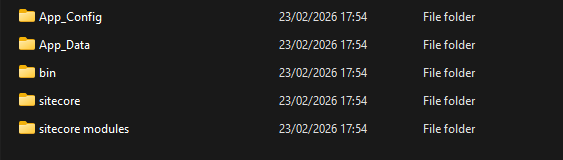
Extract the files and under Content -> Website you will see the following:
Back Up your App Service
Really Important step – Make sure you save your App Service files before installing, so you can revert!
Login to Azure and go to your CM App Service
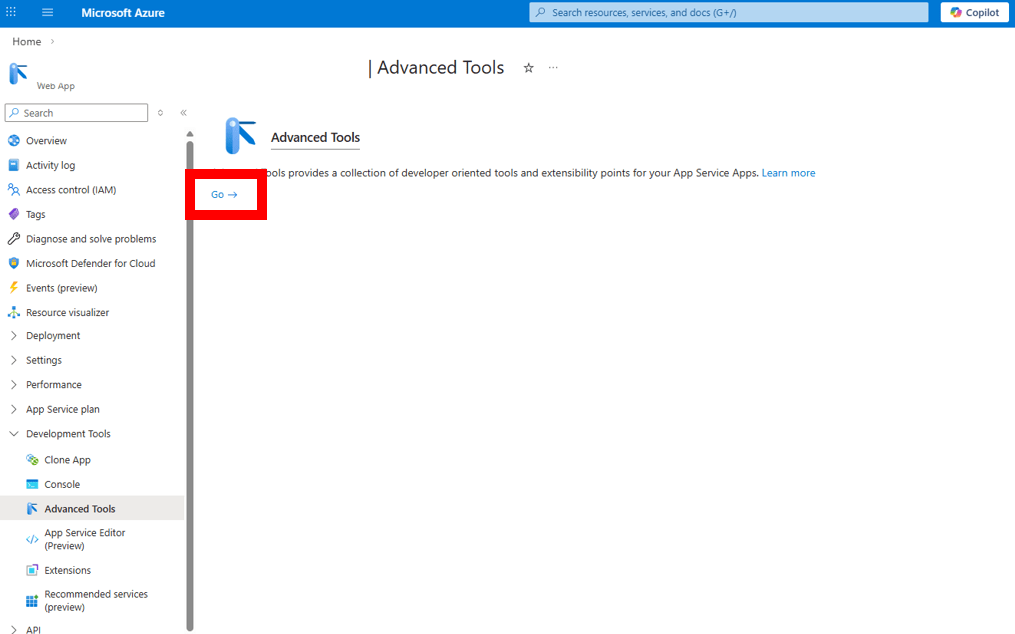
In the sidebar go to Development Tools -> Advanced Tools and click on the go button.
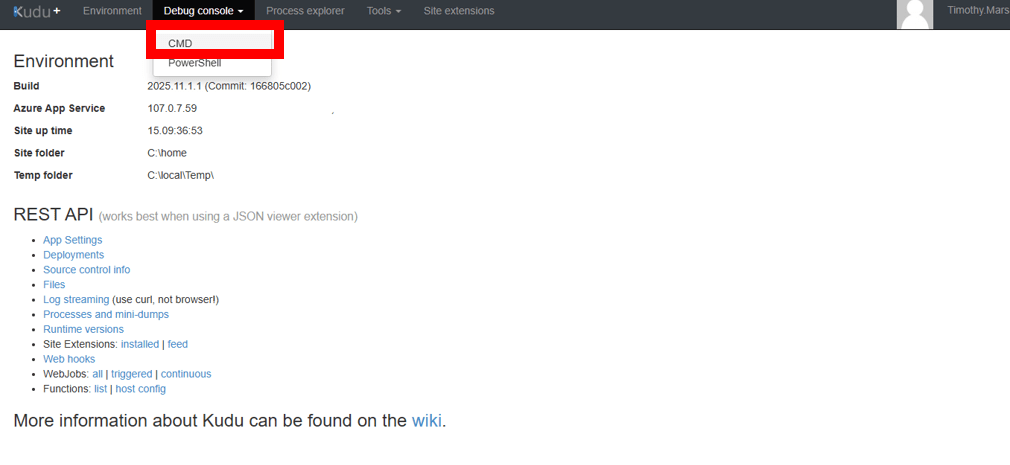
This will open up the Kudu environment, we now need to go to the Debug Console -> CMD
Click into site -> wwwroot – This will show you all the files.
Click the download icon on the folders and it will zip up the content. You need the App_Config, App_Data, bin, sitecore and sitecore modules folders. Also the web.config from the wwwroot
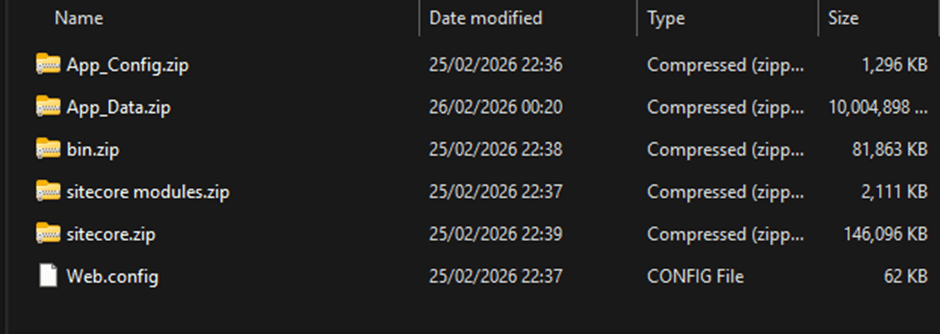
It will take a while to download depending on how many files there are.
Content Hub Setup
The documentation for Content Hub is clear and here are the links
- Create a user – https://doc.sitecore.com/xp/en/developers/connect-for-ch/latest/connect-for-content-hub/create-a-user-in-sitecore-content-hub.html
- Remember the username and password
- To set a password you will need to add an email and trigger a password reset
- Then add the user to the user group M.Builtin.SitecoreDAM.Everyone
- Get the Client Id and Secret from Logic App
- Manage > OAuth Clients > LogicApp > Edit.
- If you want to see the page that will load when going to the url its here – https://CHInstanceURL.com/en-us/sitecore-dam-connect/approved-assets
- Add in your XP instance as a CORS entry – https://doc.sitecore.com/xp/en/developers/connect-for-ch/latest/connect-for-content-hub/configure-cors-for-dam.html
App Service Update Time
Once it’s all backed up, we can start dropping the WDP package files directly into their respective places directly into the kudo editor.
When dropping files here your CM App Service will refresh (It will break)– as im sure you will find out when users start emailing.
When you have dropped all the files, your website will be broken as you need to update the wwwroot/web.config and the wwwroot/App_Config/ConnectionStrings.config
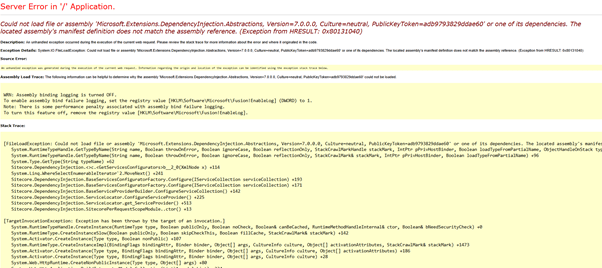
You will probably see problems like this – for me they were dll and binding mismatches
Web.config changes
Find the sections in the file and add/replace the below
<add key="cmpEnabled:define" value="no"/>
<add key="damEnabled:define" value="yes"/>
<add name="Content-Security-Policy" value="default-src 'self' 'unsafe-inline' 'unsafe-eval' https://apps.sitecore.net;img-src 'self' data: https://contenthub-dev.URL.com https://media.URL.com;style-src 'self' 'unsafe-inline' https://fonts.googleapis.com;font-src 'self' https://fonts.gstatic.com;child-src 'self' https://contenthub-dev.URL.com https://media.URL.com;connect-src 'self' https://contenthub-dev. URL.com https://media. URL.com;media-src https://contenthub-dev. URL.com https://media. URL.com;upgrade-insecure-requests;block-all-mixed-content;" />
ConnectionString.config
Add to the end of the file
<add name="CMP.ContentHub" connectionString="ClientId={client_id};ClientSecret={client_secret};UserName={username};Password={password};URI={uri};"/>
<add name="CMP.ServiceBusEntityPathIn" connectionString="{Azure Service Bus connection string with incoming topic}"/>
<add name="CMP.ServiceBusSubscription" connectionString="{Subscription name}"/>
<add name="CMP.ServiceBusEntityPathOut" connectionString="{Azure Service Bus connection string with outcoming topic}"/>
<add name="DAM.ContentHub" connectionString="ClientId={client_id};ClientSecret={client_secret};UserName={username};Password={password};URI={uri};" />
<add name="DAM.SearchPage" connectionString="https://contenthub-dev.henryschein.com/en-us/sitecore-dam-connect/approved-assets"/>
<add name="DAM.ExternalRedirectKey" connectionString="{External redirect key}"/>
See the following link for what information is needed for the connection strings
Providing all the above is done when you try to access your CM you will see this
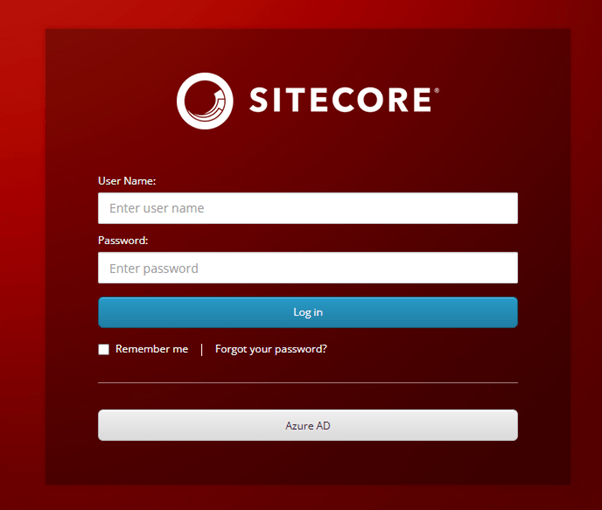
So provided all that was done – your Sitecore XP instance will now give you to option to insert from DAM on image fields.




 Tim's Blog
Leave a Reply