


One of the projects I am currently leading has a very complex custom schema; it required an update, however, I needed to get a snapshot of it before we make some changes. I wanted to get an overall view.
Out of the box you have the schema viewer which can show relations, however this is fixed and you cannot manipulate it.

So I decided to try and find a way to show the schema. The result is below and when generated will show the schema for any content hub environment.
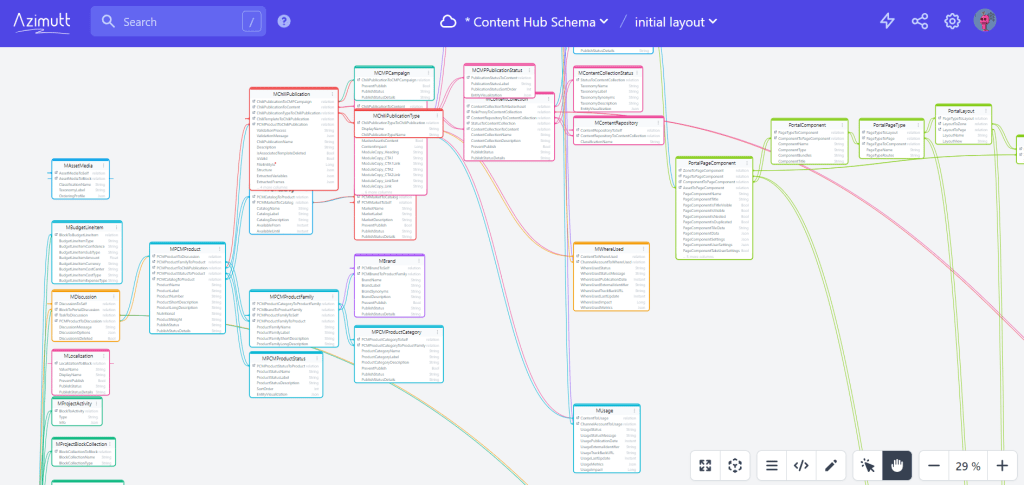
This is just for a base environment, you can zoom in, drag the blocks, see any relations.
This is a multi-stage process and the steps are below:
- Get the code
- Connect to your environment and run a console application to generate the schema
- Use Azimutt to import the schema and render the output
- Get the share link from Azimutt
- Create a new component in Content Hub to show the schema
I could have done this in Lucidchart or Visio but 2 reasons jumped out. It’s a manual process to gather the information and how do you keep it up to date.
Get the code
To make things easier I have added a repository to my GitHub.
It’s a simple console application that connects to your Content Hub instance. Reads all of the entity definitions and generates a schema for Azimutt.
You have a settings file where you add in your url and authentication information. Then when you run the tool will output to console and text file the schema.
Generate the schema
You can run the code from the repo, you just need to supply the following information in the appsettings.json:
- Url
- OAuth
- Client Id
- Client Secret
- Username
- Password
You will need to generate the credentials inside your Content Hub instance.
Run the application and a console application will start. It will run for all schema definitions, if you wanted to block the OOTB definitions you could add some code to filter the list by M. to block all of these.
This will connect to the Content Hub instance and get all of the required information. When finished it will save the result to a text file and also output to the console. We will need the file to create the new diagram in Azimutt.
Import the schema
Like me, you have probably never heard of Azimutt (thanks to Jose D for suggesting this tool). I tried out a few but then just didn’t output like I wanted, I like visual diagrams that have nice spacing automatically and are simple to use.

Start by creating an account, then clicking on the ‘New project’ button

On the next screen select the ‘From scratch’ option then ‘Create new project’
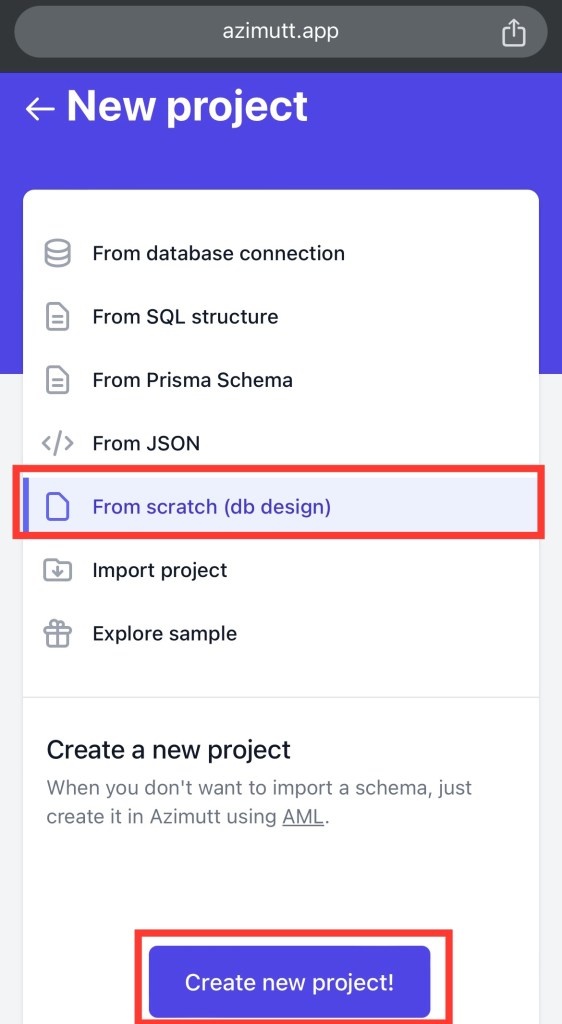
After creation you get an empty editor window, click on the AML link (bottom right) and paste in the output from the console application.
The view will render and you have your diagram of your schema. If you encounter issues it will display these at the bottom and it’s normally due to a missing relation in the data.
Share the diagram
Azimutt allows you to share saved layouts for embedding automatically. You need to make sure you save the layout to the Azimutt cloud.
Soon as that’s done you will get an option to share. When you share make sure you select the ANON option and copy the iFrame code.
Create a new page and add an external component. That way you have access to it inside Content Hub
I hope this is useful for someone and another way to get information from Sitecore Content Hub



 Tim's Blog
Leave a Reply