

Sitecore Content Publisher allows users to build publications directly into Sitecore Content Hub. This can massively reduce time to market for publications as users can directly use approved assets from the Content Hub DAM.
The power behind Sitecore Content Publisher is CHILI publish. It enables teams to produce publications directly in Content Hub and is all about features that can scale.
To find out more about Sitecore Content Publisher check out my blog on it from a high level – Content Hub – Getting Started with Sitecore Content Publisher

I created the templates and publications in this blog post for test purposes.
They are not official even though they are branded. They have been created so readers can see their appearance with products.
What is the problem
When designers design an advert they set the width and height of the template. An easy way to understand this is with the orientation. Generally, designs will be either portrait or landscape.

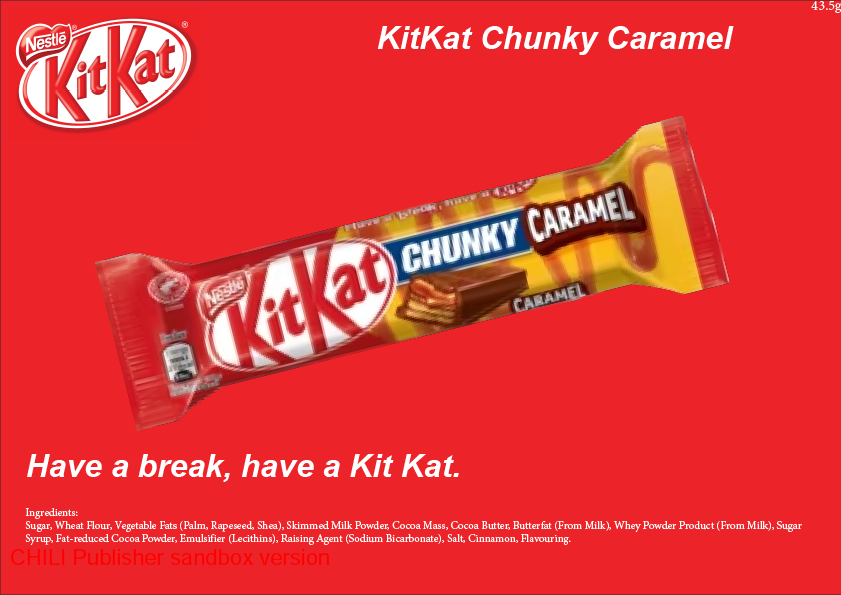
The problem is easy to see straight away. They need to manage two different versions of the same template. This increases further when, say, working in 2 different regions. These regions may have slightly different paper sizes. In the UK, A4 paper is different to the US Letter.
This could now be 4 different templates for a designer to manage as it’s 2 paper sizes per orientation.
This is an example with 4 different paper sizes but in reality a designer could have hundreds of templates with slight variations. Every time there is a slight change they need a new template with exactly the same frames but modified positions.
This is all possible with smart templates inside Sitecore Content Publisher / CHILI GraFx Publisher.
How to use different paper sizes in your publications
What I’m going to show here is a feature that is out of the box with Sitecore Content Publisher. That is a flexible smart template that can dynamically adjust based on the user’s selection. This will be to show the difference between A4 portrait and landscape.
Start by either importing a template from an Adobe product (InDesign or Illustrator) or creating a brand-new one. Import steps are here for InDesign. For this blog, I have created a fake advert for a well known chocolate bar brand.
Open up your Content Hub environment and go to the Print -> Templates section. Then open up the imported CHILI package. This will open up the editor, where you can start making changes to your template. This template is set to A4 UK Portrait (297mm x 210mm).

The next step is to add an Alternative Layout, click on the document tab and expand the alternate layout section. Click the plus button and name the layout, this is going to be for landscape.

Next scroll to the top of the document section and switch the sizes around. Soon as you click out of the text box the view updates to below.

Re-position your frames and the output should look similar to the one below.

We now have 2 layouts inside one template that can easily be switched between each other.
What can you do with it now?
The next step is allowing your users to switch the layout easily. We are going to add a drop-down that Content Hub users can use to change the layout easily.
Make sure your template is loaded, and click on the variables tab on the right side. Add a new list variable and name it Orientation.
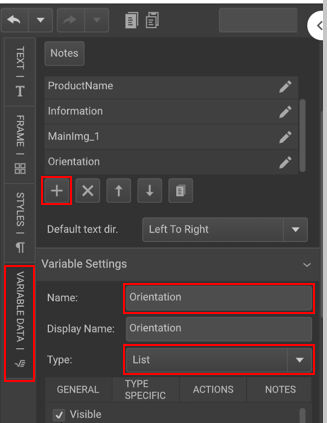
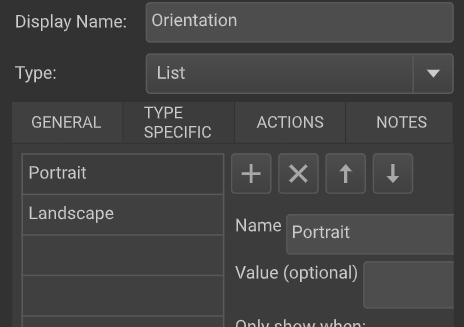
Next, add a new list variable with the following options.
- Portrait
- Landscape
Next, we are going to add an on-change event with the following options

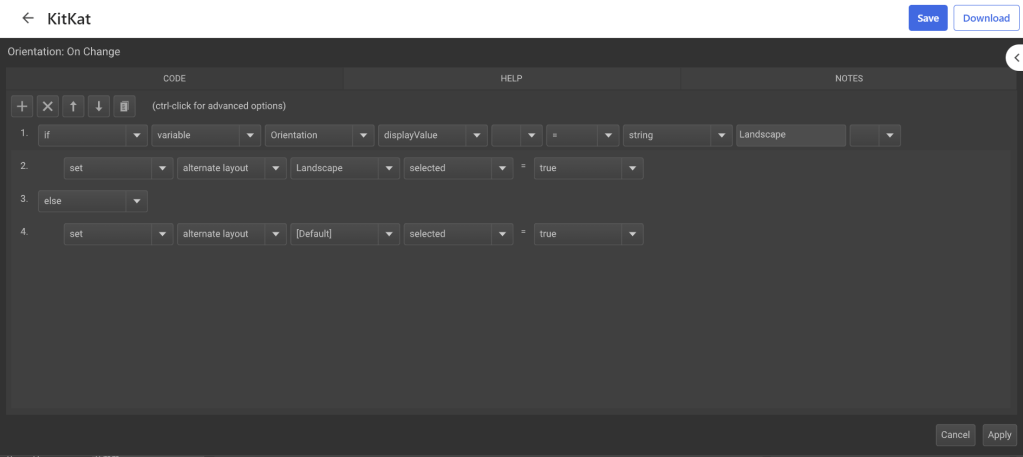
Click save and open the variable data tab. Test out your drop-down by changing the different views
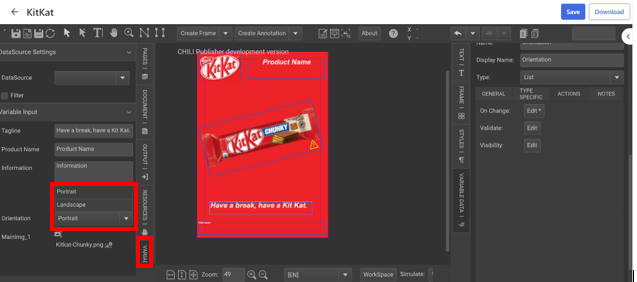
If you go and create a new publication now it will have a drop-down in the end user window. Users can easily change their page settings and download the output.
This is a simple example with 2 different sizes. Sitecore Content Publisher offers so much power to users.
The idea of this blog is for someone to have inspiration and know about what is possible.


 Tim's Blog
Leave a Reply