



Sitecore Content Publisher allows users to build publications directly into Sitecore Content Hub. This can massively reduce time to market for publications as users can directly use approved assets from the Content Hub DAM.
The power behind Sitecore Content Publisher is CHILI publish. CHILI is leading the market and defiantly number one for creative automation. It enables teams to produce publications directly in Content Hub and is all about features that can scale.
To find out more about Sitecore Content Publisher check out my blog on it from a high level – Content Hub – Getting Started with Sitecore Content Publisher

In 2022 I spoke at Sitecore Symposium in Chicago and also at CHILI’s event in Belgium about how we have used the power of Content Hub and CHILI publish to revolutionise advert production for a major global brand.
The topic of QR codes came up as the advertisement materials we produce may include an optional link to a particular webpage. The use of QR codes has increased massively in the past few years and the customer wanted to the option to either display a URL or QR code.
Sitecore Content Publisher out of the box has this feature and below I’ll explain the simple steps to use QR codes.
How to embed QR codes
To start with we are going to need an Adobe InDesign template that is converted to CHILI’s own format. The steps are already covered in a previous blog Sitecore Content Publisher – Importing from Adobe InDesign
For this blog I’m going to use the same asset shown in my import blog. This was a promotional image for my first speaking event at the London Sitecore User Group.

So after following all of the steps of the blog we need to new edit the print template in Sitecore Content Hub.
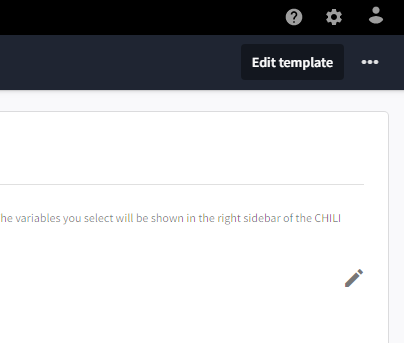
Click on the template and after the detail page loads you need to click on the ‘Edit template’ button that’s in the top right.
After loading click on the variables tab (right side vertical tabs) and add a new variable. Set the name of your choice then the type to ‘Short Text’ and save the document.

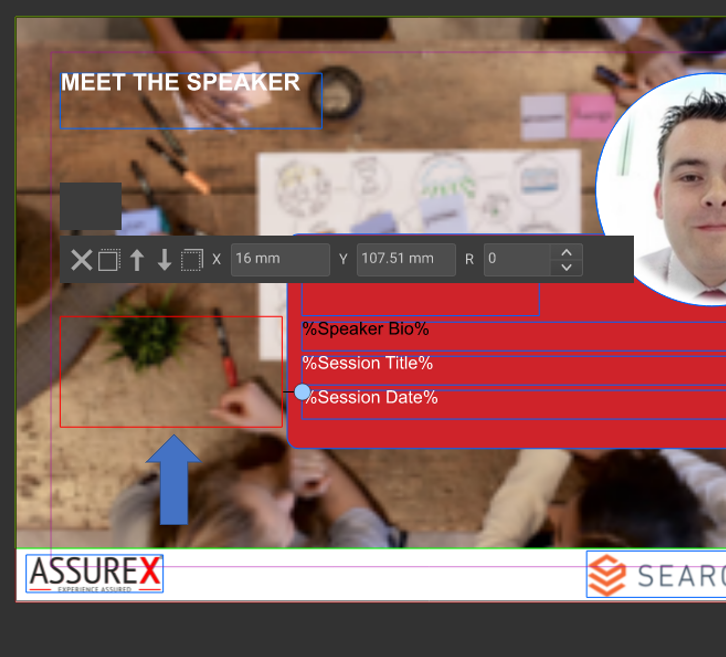
Depending on your template you can either use an existing frame or add a new one. We are going to add a new one by clicking on the drop-down at the top and clicking on the ‘Barcode’ item.

It will add a new frame to the editor and it will be highlighted red. Place the new frame wherever it’s needed and save
Now we need to link them up, we do this in the ‘Barcode’ tab (right side vertical tabs). You need to change the type to ‘QR’. Set the variable to one created in the variables tab. You might want to scale it a bit the default of 100 was too small for my template. After this click the apply button and also save the document again.

To test out the QR code click on the Variables tab (left side vertical tabs) and enter a URL into the varianle. The QR code should automatically update and allow you to scan it with your mobile device.

Following the save of your template and the refreshing of your renditions. You can now create a new publication and after entering a URL will update the QR code on the publication.

I hope this has been useful and shows the power of Sitecore Content Publisher and CHILI publish
Happy editing!




 Tim's Blog
Leave a Reply