


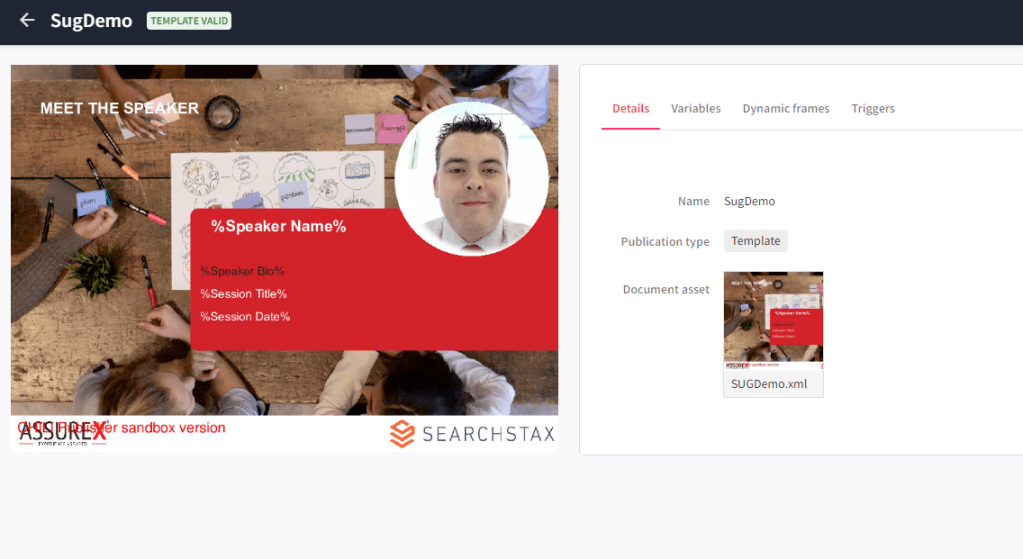
Sitecore Content Publisher allows users to build publications directly into Sitecore Content Hub. This can massively reduce time to market for publications as users can directly use approved assets from the Content Hub DAM.
Sitecore Content Publisher is split into two major parts depending on the audience.
Template Editor – For administrators of content publishing to configure templates for use in publications.
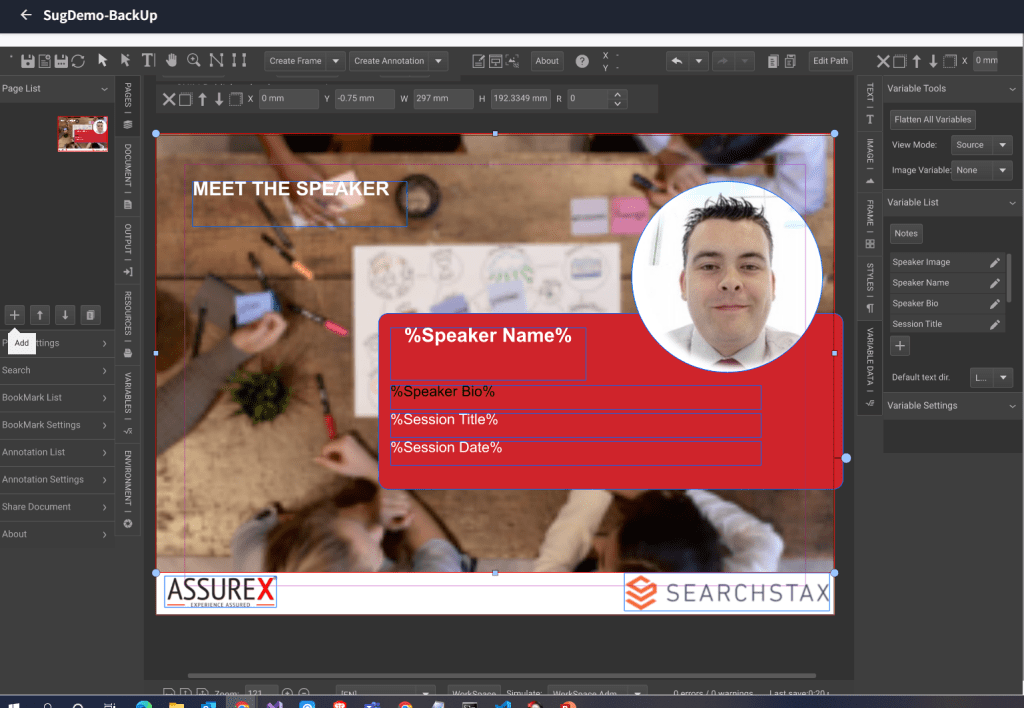
Publication Editor – This is for end users to use an already configured valid template for a publication
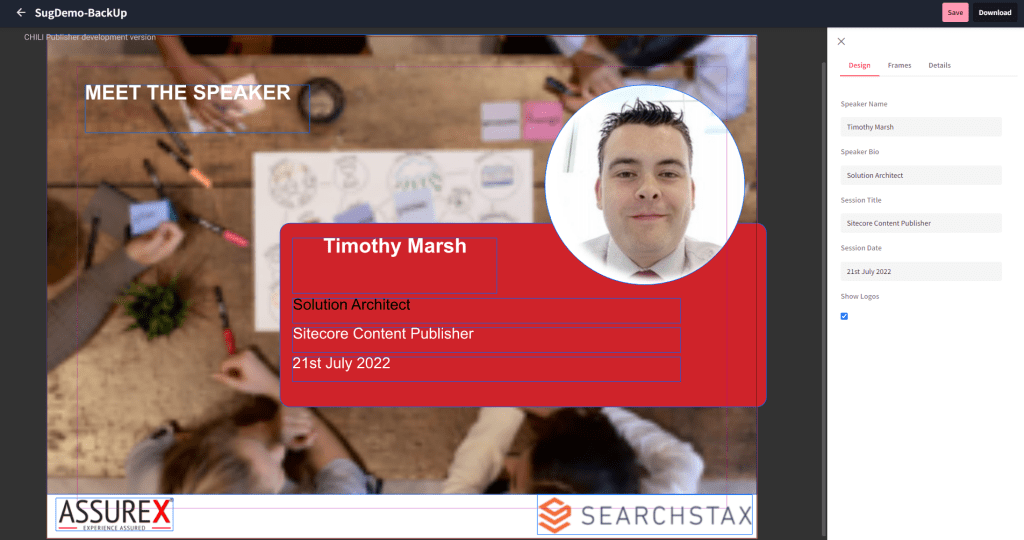
While users can build templates from scratch directly in the template editor. This post is going to focus on the exporting of InDesign templates for import into Sitecore Content Publisher.

Chili Publish which is used to power Sitecore Content Publisher uses a custom xml format that is packaged from the design package. They have built extensions for InDesign and Illustrator which preflight documents and provided no warnings will generate xml packages.
You get the extensions directly from Chili Publish after you have a support login. The InDesign and Illustrator extensions both have Windows and Mac installations.
Start by installing the extension (in this example I’ll use InDesign) which will give you some new options. We need the Chili Live Preflight 4 and Chili Convertor 4 extensions.
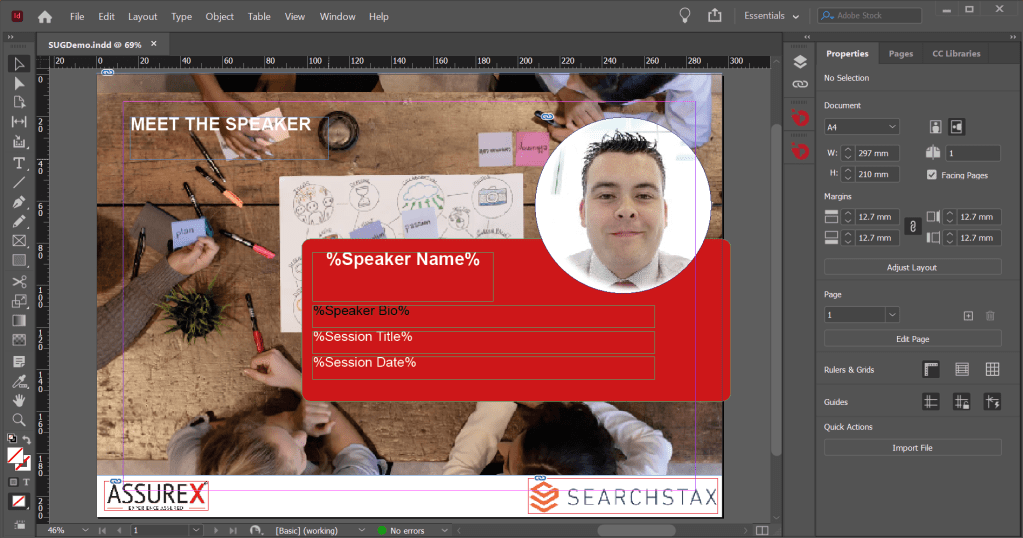
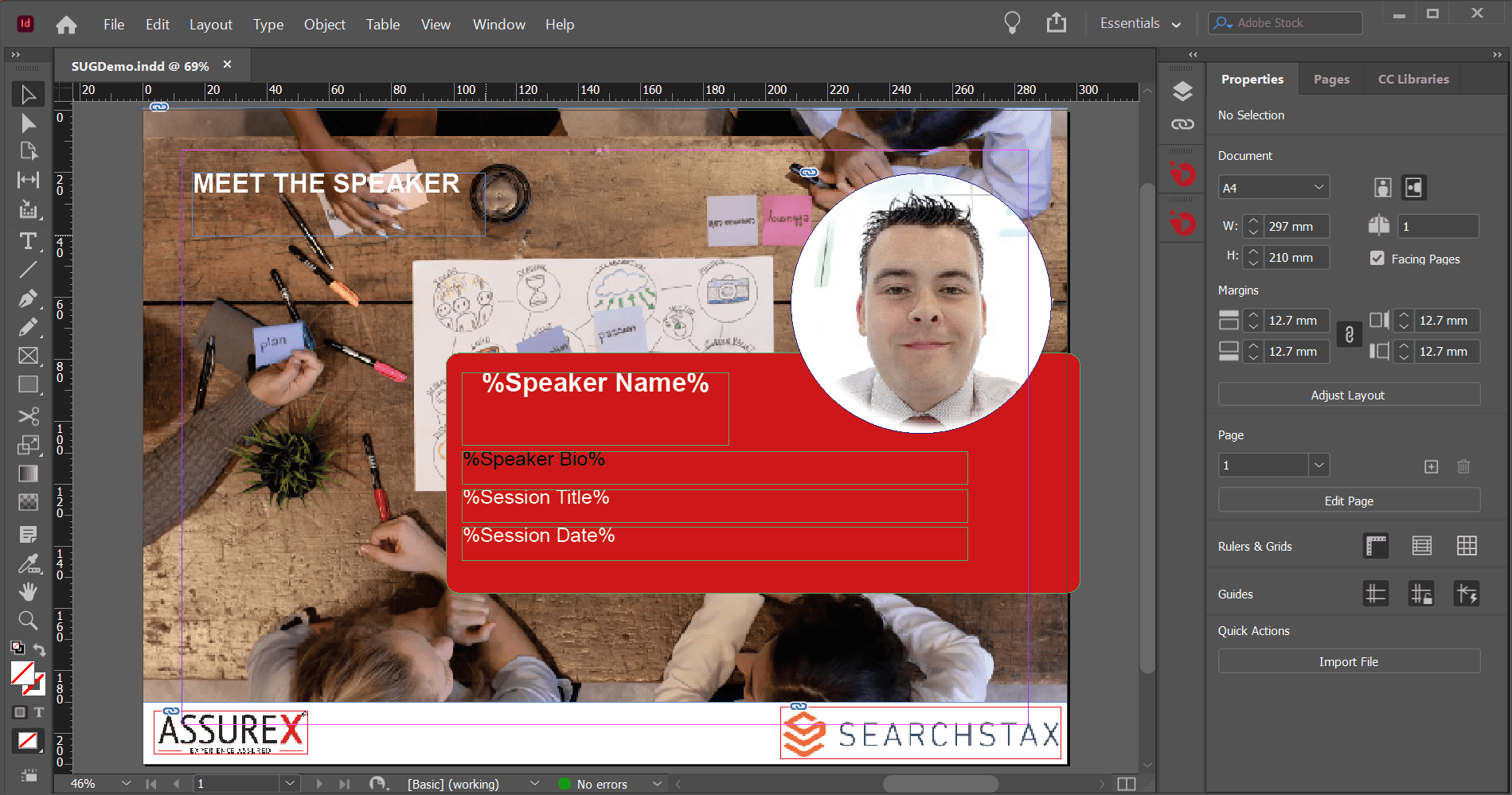
Open or create the InDesign file you want to export and finish your editing. For this post I have an InDesign file I recently used for my Sitecore SUGUK talk.
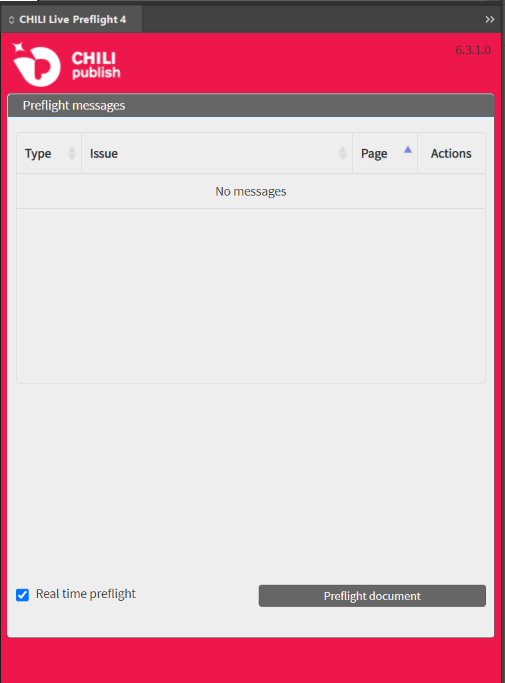
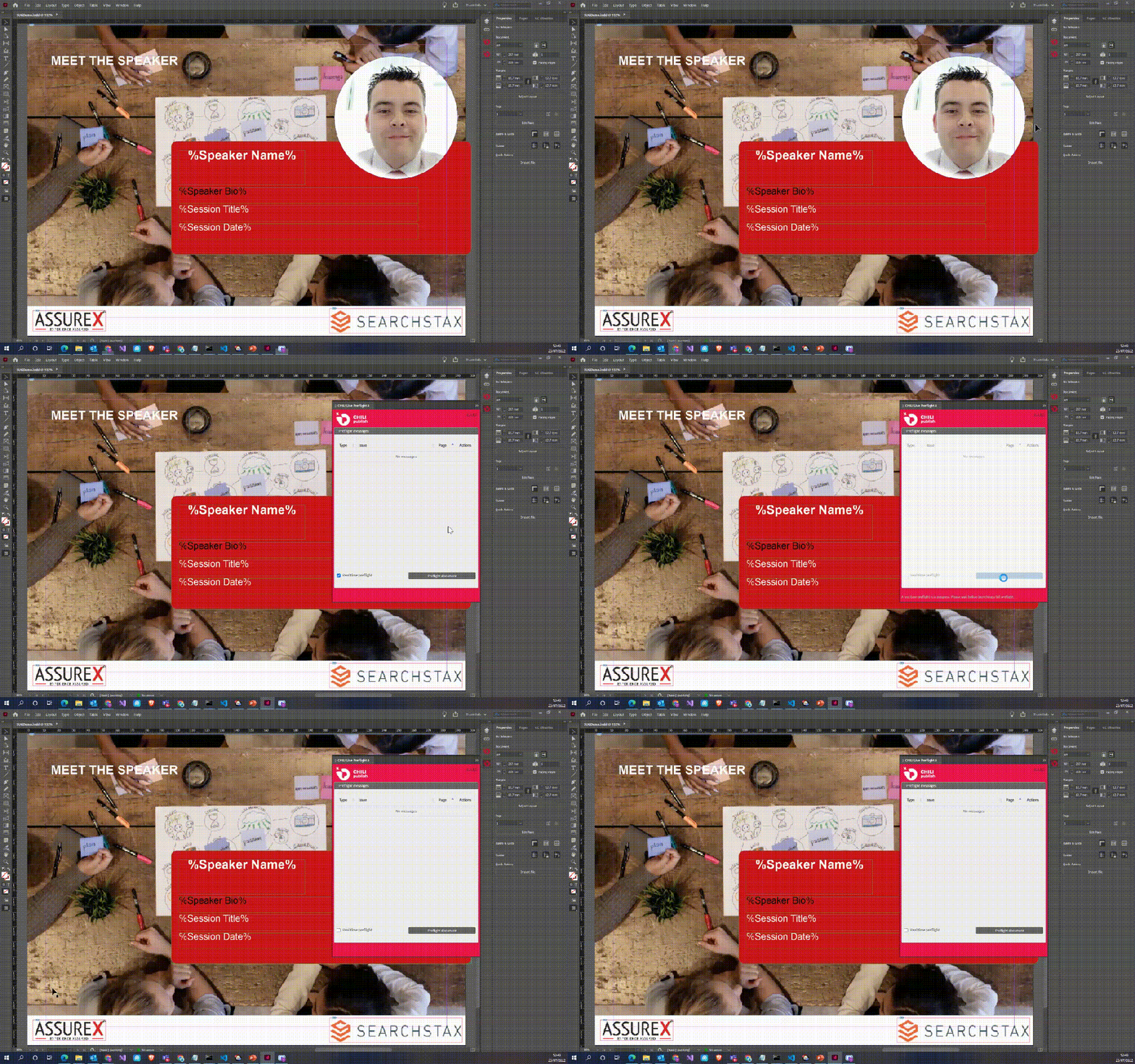
Open the preflight extension and run the tool, after a few seconds it will give you an update. Providing there are no errors you can continue to next step. Otherwise correct the errors and re run the tool.
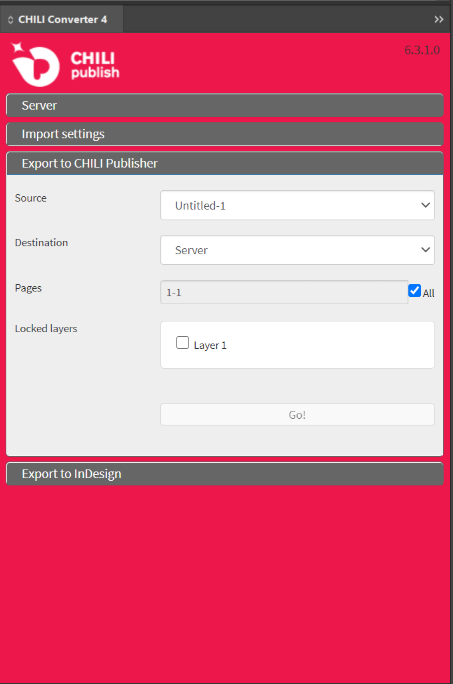
Open the export extension and click export to Chili. Make sure the layers are unlocked and other options. Click the export button and a package will save to the selected folder.

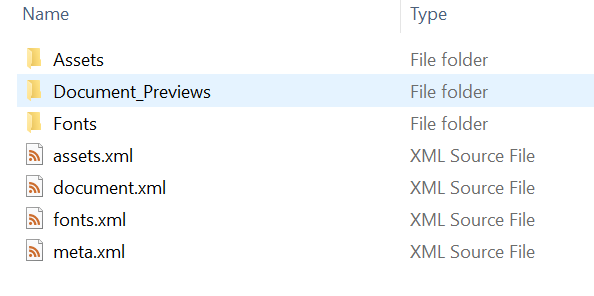
This will output a zip file with various xml files that will be imported to Sitecore Content Publisher.
Open your Content Hub instance and open the Print -> Templates section.
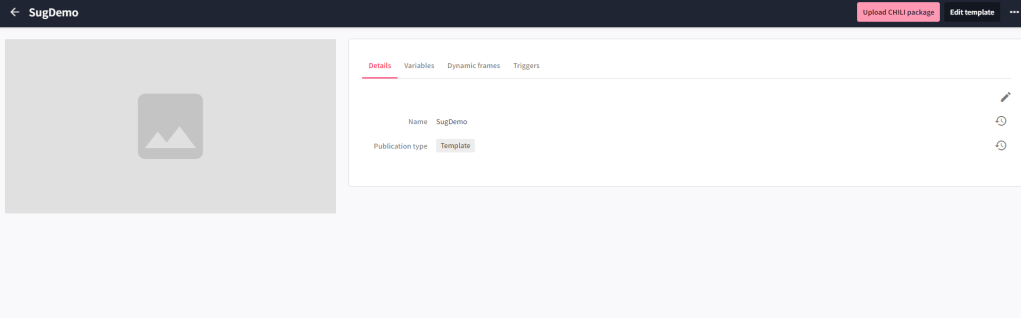
Click the create button and create a new template. You should see a Upload Chili package button which after selecting your package will refresh the page and process your InDesign file.
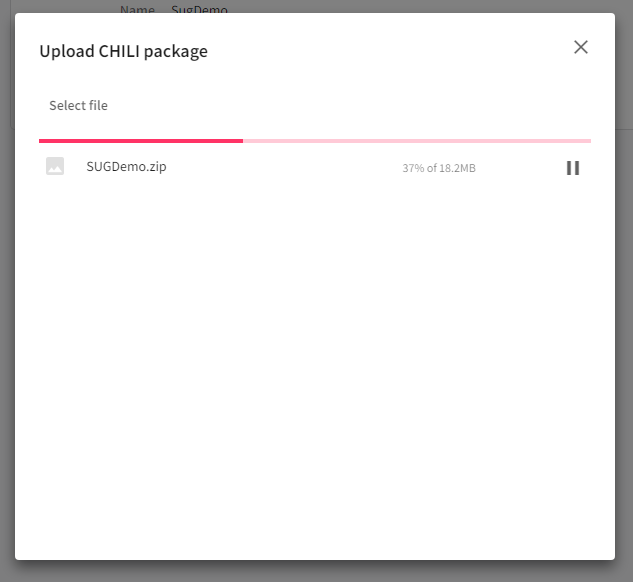
After a short while the validation will finish and display a Template Valid message.

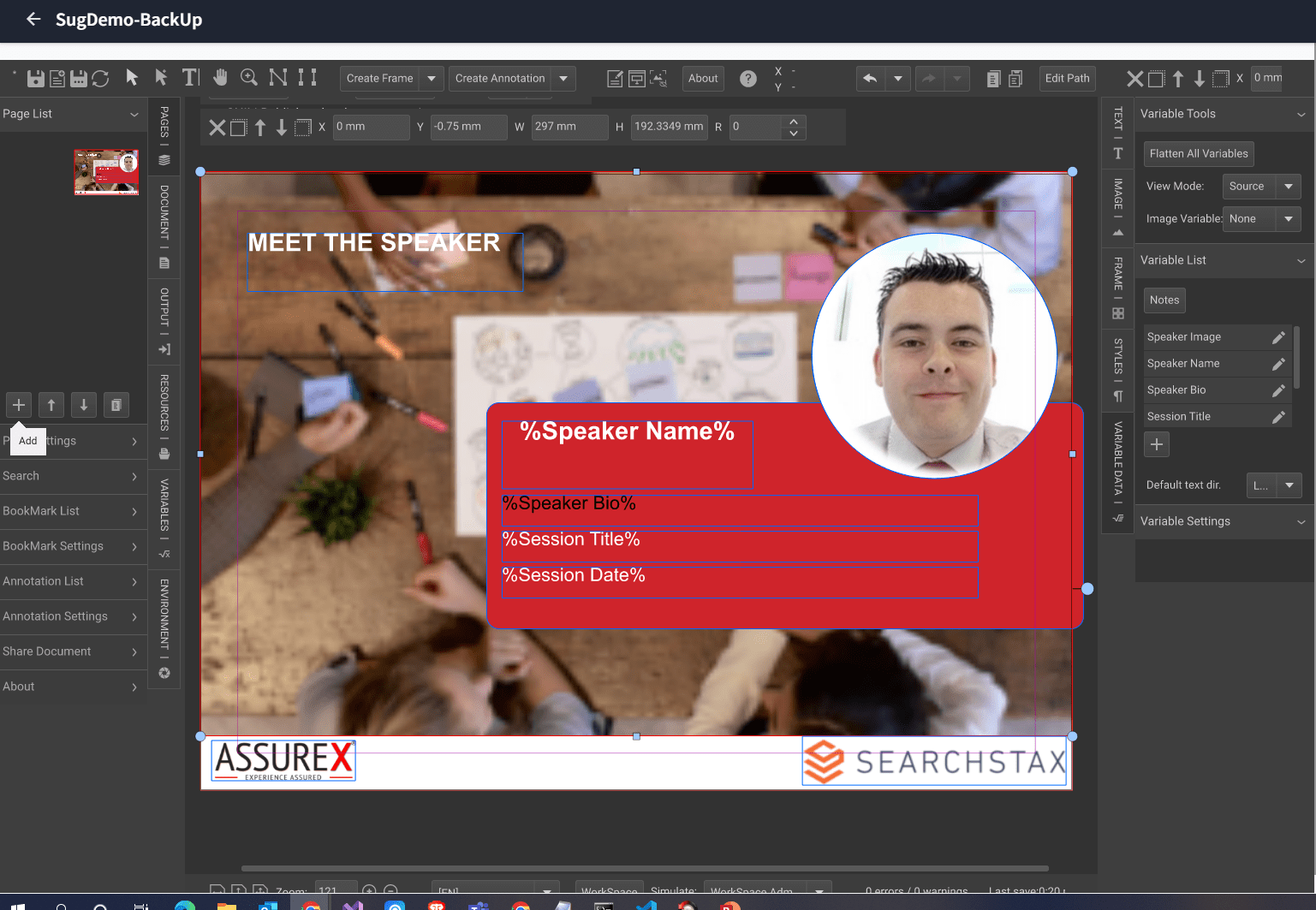
Now you can click edit which will open the Chili template editor. Your InDesign template should be shown in the editor and allow editing. Below is a comparison between InDesign and the Chili template editor.
Happy editing


 Tim's Blog
Leave a Reply