


Content Hub has so much potential and extensibility making it great to explore new ideas. Currently I’m leading a project stream that involves Sitecore Content Publisher for a major global automotive brand.
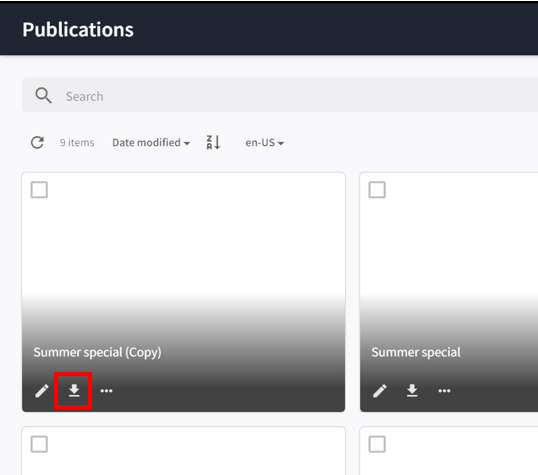
While working on this project we were trying to duplicate some core publisher functionality for reuse in custom pages.
We wanted to duplicate the download capability which is on the search component (Shown to the left) on the Publications page.
When adding a normal download action the chili_pdf rendition was not downloading.
I noticed that on the Publications page the Search Component grid actions were not of the standard type. The download action is highlighted below.
It is a raw action and is used to download Chili Publications that are generated in Sitecore Content Publisher. Below is the output shown when clicking on the action. It contains a JSON object that details out all of the information needed to download the Chili pdf using the correct template.


Chili publications have particular renditions in media processing so it made sense to duplicate the component to preview the correct output.
The process worked for us and hopefully would provide help to anyone that encounters the same issue.

Point to note the method explained below does not work for locked components or locked pages. For these cases you would need to raise a ticket with Sitecore support detailing what component/action needs to be duplicated.
As with all changes in Content Hub it is probably best to back up in some way, whether this is exporting portal pages or noting down the original configuration.
1. Go to the page with the component that has the action to be duplicated. This example is Print -> Publications -> Search Component – Grid

2. Open its entity management page
- Duplicate the tab
- Update the URL replacing searchcomponent with entitymgmt/entity
- content-hub-domain/en-us/admin/searchcomponent/entity-id
- content-hub-domain/en-us/admin/entitymgmt/entity/entity-id
3. Copy the configuration
- Edit the component

- Find the JSON editor called System Settings
- Switch to text mode as it’s much easier to copy
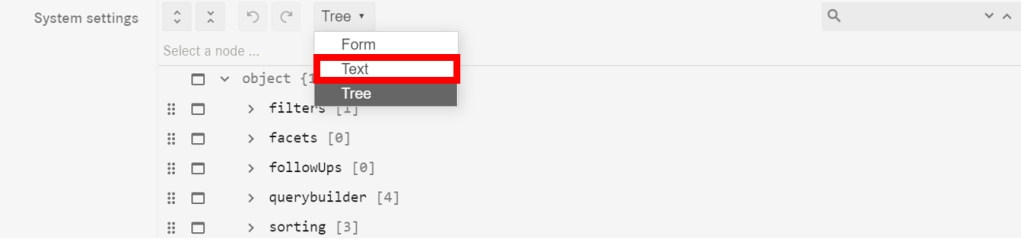
- Copy the part of configuration for the raw download action.

4. Go to the page where you have created the new component. This example is Print -> Publications -> Search Component Duplicate – Grid
5. Open it’s entity management page (same as step 2 with new page id)
6. Edit the component and open the JSON editor in text mode
7. Paste the configuration into the correct place for the action and save


8. Refresh the page where the new search component is and see changes shown
Hopefully this will help anyone else that has this issue in the future. This process should work with any action or component if you want to duplicate it exactly.


 Tim's Blog
Leave a Reply